

Git makes local branch cleanup simple, but there is an important distinction between a normal branch deletion and a forced deletion.
To safely delete a local Git branch that has already been merged, use git branch -d. To delete a local branch regardless of its merge status, use git branch -D.
git branch -d branch-name
git branch -D branch-name
Neither command deletes the corresponding branch from GitHub, GitLab or another remote repository. Local and remote branches must be deleted separately.
How to safely delete a local Git branch
The preferred command is:
git branch --delete old-branchThe shorter form does exactly the same thing:
git branch -d old-branchThe lowercase -d option is intentionally conservative. Git refuses the deletion when it determines that the branch contains work that has not been safely merged.
A typical cleanup looks like this:
git switch main
git branch -d old-branch
git branch
First switch away from the branch you want to remove. Then delete it and use git branch to inspect the remaining local branches.
You cannot delete the branch you are using
Git will not let you delete a branch that is currently checked out in the working tree.
For example, if you are currently on feature/login, this will fail:
git branch -d feature/loginSwitch to another branch first:
git switch main
git branch -d feature/login
For modern Git workflows, git switch makes the intent particularly clear. The older git checkout main syntax still works, but git switch is designed specifically for changing branches.
How to force-delete a local Git branch
If the branch has not been fully merged, Git may refuse a normal -d deletion. If you have verified that the branch is no longer needed, use uppercase -D:
git branch -D old-branchThe uppercase option is shorthand for a forced delete. It should be used deliberately because it bypasses the merge-safety check that protects commits on an unmerged branch.
| Command | Behavior |
|---|---|
git branch -d branch-name |
Safely deletes a branch when Git considers its work merged. |
git branch --delete branch-name |
Long form of -d. |
git branch -D branch-name |
Force-deletes the branch even when it has unmerged work. |
Check whether a branch is merged before deleting it
If you are unsure whether a local branch has been merged, Git can show branches whose tips are reachable from the current branch:
git branch --mergedYou can also inspect branches that have not been merged:
git branch --no-mergedThese commands are useful before a large branch cleanup because they help distinguish old merged branches from branches that may still contain unique work.
Delete multiple local Git branches
The git branch -d command accepts more than one branch name, so several merged branches can be removed at once:
git branch -d feature-one feature-two old-releaseThe same is true for forced deletion:
git branch -D feature-one feature-two old-releaseUse the forced version only when you have intentionally decided that any unmerged commits on those branches can be discarded.
Local branch deletion does not delete the remote branch
A local branch and a remote branch are separate references. Deleting old-branch from your workstation does not remove old-branch from GitHub, GitLab or another remote.
This command affects only the local repository:
git branch -d old-branchIf origin/old-branch exists, it remains on the remote server.
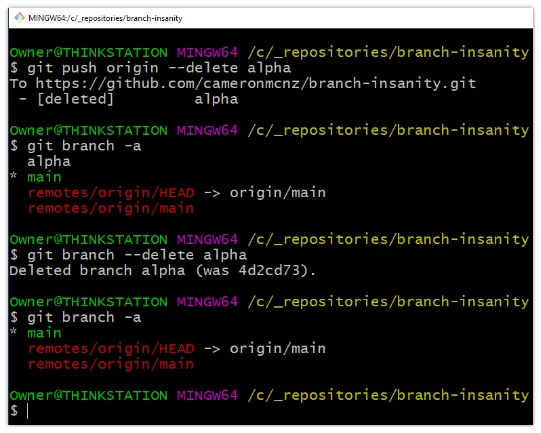
How to delete a remote Git branch
To delete a branch named old-branch from the remote named origin, use:
git push origin --delete old-branchThis asks the remote repository to delete its branch. It does not automatically remove a local branch of the same name.
To delete both, issue the two commands separately:
git branch -d old-branch
git push origin --delete old-branch
Clean up stale remote-tracking branches
Git also maintains remote-tracking references such as origin/feature-one. If another developer deletes a branch from the server, your local repository may continue to display the old remote-tracking reference until you prune it.
Fetch and remove remote-tracking references that no longer exist on the remote with:
git fetch --pruneYou can also prune a specific remote:
git remote prune originThis cleanup is different from deleting an actual branch on the server. Pruning removes stale remote-tracking references from your local repository.
List local and remote branches
Use these commands to see what exists before or after cleanup:
git branch
git branch -r
git branch -a
git branch lists local branches, git branch -r lists remote-tracking branches and git branch -a displays both.
Can a deleted Git branch be recovered?
Deleting a local branch removes the branch reference, but the underlying commits are not necessarily erased immediately.
If you accidentally delete a branch, inspect the reflog:
git reflogFind the commit that previously represented the branch tip and recreate the branch:
git switch -c recovered-branch <commit-id>Recovery is easiest when attempted soon after an accidental deletion, before unreachable objects are eventually removed by Git's housekeeping and garbage-collection processes.
Git branch deletion command summary
| Task | Command |
|---|---|
| Delete a merged local branch | git branch -d branch-name |
| Force-delete a local branch | git branch -D branch-name |
| Delete several local branches | git branch -d one two three |
| Show merged branches | git branch --merged |
| Show unmerged branches | git branch --no-merged |
| Delete a remote branch | git push origin --delete branch-name |
| Prune stale remote references | git fetch --prune |
| List all branches | git branch -a |
For routine cleanup, the safest sequence is simple: switch to the branch you want to keep, inspect which branches have been merged and delete old branches with lowercase -d. Reserve uppercase -D for branches you have deliberately decided to discard.