

Hotfix branch and Gitflow tutorial
Hopefully, you don't need to start a Gitflow hotfix too often. In fact, life is best if you never have to start the Gitflow hotfix process at all.
A Gitflow hotfix branch is used when a critical bug or security flaw is discovered in the version of an application currently running in production. Instead of waiting for work on the develop branch to be completed, the hotfix starts directly from the production branch so the problem can be corrected and released immediately.
Classic Gitflow documentation calls the production branch master. Many modern repositories use main instead. The examples below use master because that is the production branch configured in this Gitflow repository, but the same workflow applies when a project uses main.
Properties of a Gitflow hotfix
Here's the basic Gitflow hotfix branch process:
- The hotfix branch starts directly from the production branch, traditionally named
master. - Commits on the hotfix branch should focus on the urgent production problem.
- Feature enhancements and unrelated development should remain on other branches.
- When finished, the hotfix is merged into both the production branch and
develop. - The finished production commit is tagged with the hotfix version.
- The local hotfix branch is removed after the Gitflow finish operation completes.
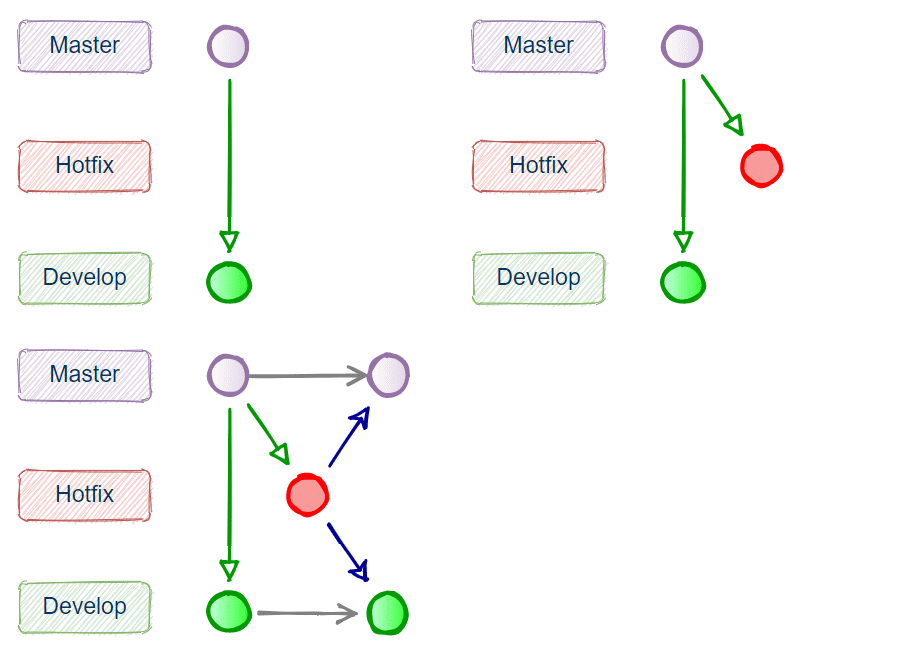
In this Gitflow hotfix branch example, the urgent fix is incorporated into both the production and develop branches before the hotfix branch is removed.
Simple Gitflow hotfix example
The following example demonstrates the complete Gitflow hotfix lifecycle, from repository initialization through the final merge and version tag.
First, initialize Gitflow in an existing Git repository:
git flow initGitflow asks which branch names and prefixes you want to use. With the traditional defaults, the production branch is master and ongoing development occurs on develop.
After initialization, inspect the branches and tags:
git branch -a
git tag -l
At this point, a simple Gitflow repository contains the production and development branches, but there is not yet a hotfix branch or hotfix version tag.
Start the Gitflow hotfix
Suppose version 0.1.0 is in production and an urgent bug must be fixed. Start a hotfix for version 0.1.1:
git flow hotfix start 0.1.1Gitflow creates the hotfix/0.1.1 branch from the production branch and switches the working tree to it.
For this simple example, create a file that represents the production fix, stage it and commit it:
touch hotfix.html
git add hotfix.html
git commit -m "Fix critical production bug"
You can confirm that the hotfix branch is active:
git branch -aThe branch list should now resemble the following:
develop
* hotfix/0.1.1
master
At this stage, the fix exists only on hotfix/0.1.1. It has not yet been incorporated into either master or develop.
Finish the Gitflow hotfix
After the production fix is complete and tested, finish the hotfix:
git flow hotfix finish 0.1.1The Gitflow finish operation performs the important housekeeping required by the workflow. It merges the hotfix into the production branch, tags the production release, merges the fix back into develop, and removes the local hotfix branch.
Depending on your Git configuration, Gitflow may open an editor so you can confirm merge and tag messages during this process.
After the command completes, inspect the branches and tags:
git branch -a
git tag -l
The hotfix branch should be gone, while the version tag remains:
develop
* master

0.1.1
Verify the hotfix on master and develop
The defining characteristic of the Gitflow hotfix process is that the correction reaches both lines of development. The production branch receives the immediate fix, while develop receives the same correction so future releases do not reintroduce the bug.
Check the production branch:
git switch master
ls
The hotfix.html file should be present. Then check develop:
git switch develop
ls
The same file should also be present there.
You can visualize the resulting history with:
git log --graph --oneline --decorate --allThis makes it easier to see where the hotfix started and how the completed fix was incorporated into both long-lived branches.
Gitflow hotfix commands from start to finish
The essential commands from the complete example are:
git flow init

git flow hotfix start 0.1.1

touch hotfix.html
git add hotfix.html
git commit -m "Fix critical production bug"

git flow hotfix finish 0.1.1

git branch -a
git tag -l
git log --graph --oneline --decorate --all
In a real project, the actual bug fix would replace the simple touch hotfix.html command, and the change should be tested before the hotfix is finished.
Push the completed hotfix
The local Gitflow operation does not automatically publish all of these changes to a remote repository. After the hotfix is finished, push the updated production branch, development branch and tags to the remote repository.
git push origin master
git push origin develop
git push origin --tags
If your repository uses main as its production branch, push main instead of master.
When should you use a Gitflow hotfix?
A hotfix should be reserved for an urgent production correction that cannot wait for the normal release cycle. Ordinary feature development, refactoring and noncritical bug fixes should continue through the project's normal feature and release workflow.
Nobody likes to deal with production failures or security problems. But when an urgent issue does occur, the Gitflow hotfix branch provides a disciplined path for fixing production immediately while ensuring the same correction is carried forward into future releases.
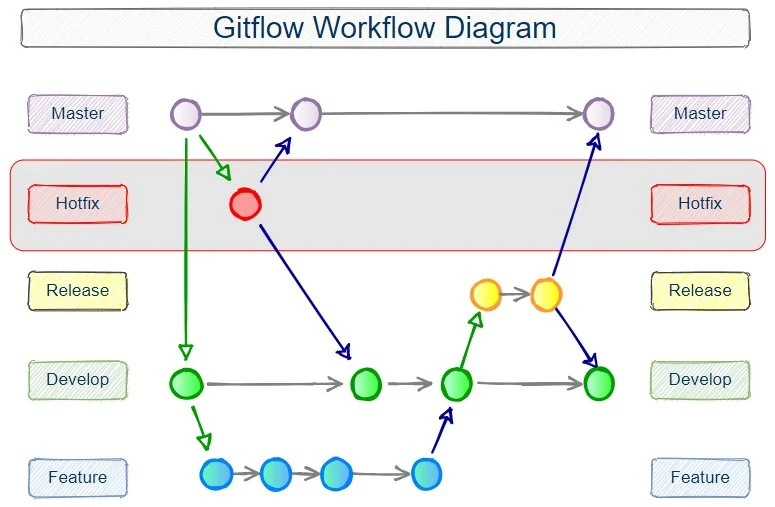
The Gitflow hotfix branch is one part of the larger Gitflow workflow.