

Use local files with Docker's Apache httpd container
You do not need to copy your website into a custom Docker image every time you want to test it with Apache.
For local development, a much simpler approach is to run the official Apache httpd image and bind-mount a directory from your computer into Apache's document root inside the container.
This gives you a fast edit-and-refresh workflow:
- No custom Dockerfile is required.
- No image rebuild is required after each HTML, CSS or JavaScript change.
- Local file changes are immediately visible to Apache.
- You can easily test against different Apache image versions.
Technically, this is a bind mount, not a Docker-managed named volume. A bind mount maps an existing host directory directly into the container.
Apache httpd document root
The official Apache httpd image serves website files from:
/usr/local/apache2/htdocs/If a local directory is mounted at that path, the container serves the host files instead of the files originally packaged inside htdocs.
Modern Docker run example
Docker supports both -v and --mount for bind mounts. The --mount syntax is clearer because the source and destination are explicitly named.
Assume your project contains a directory named website:
project/
└── website/
    ├── index.html
    ├── styles.css
    └── app.js
On Linux, macOS or Git Bash, run:
docker run -d \
  --rm \
  --name my-apache-app \
  -p 8080:80 \
  --mount type=bind,src="$(pwd)/website",dst=/usr/local/apache2/htdocs,readonly \
  httpd:2.4
Then open:
https://localhost:8080The command:
- Runs the container in detached mode with
-d. - Removes the container automatically when it stops because of
--rm. - Names the container
my-apache-app. - Maps host port
8080to Apache's port80. - Bind-mounts the local
websitedirectory into Apache's document root. - Makes the bind mount read-only.
PowerShell example on Windows
PowerShell uses different line continuation and path syntax. A clean Windows example is:
docker run -d `
  --rm `
  --name my-apache-app `
  -p 8080:80 `
  --mount "type=bind,src=${PWD}\website,dst=/usr/local/apache2/htdocs,readonly" `
  httpd:2.4
Quoting the complete --mount argument is especially useful when the host path contains spaces.
Why Docker reports invalid reference format
The Docker invalid reference format error is often caused by incorrect shell quoting or path expansion. For example, syntax copied from Bash may not work unchanged in PowerShell.
The original example used:
-v $(PWD)/website:/usr/local/apache2/htdocs/That syntax is incorrect because shell variable names are case-sensitive on Unix-like systems, and $(PWD) is command substitution rather than the normal current-directory expression.
In Bash, use:
"$(pwd)/website"In PowerShell, use:
"${PWD}\website"If Docker still reports a path-related error, inspect the value your shell expands before assuming the Apache image is the problem.
The shorter -v syntax
The traditional -v form still works and is often convenient for short commands.
Linux, macOS or Git Bash:
docker run -d \
  --rm \
  --name my-apache-app \
  -p 8080:80 \
  -v "$(pwd)/website:/usr/local/apache2/htdocs:ro" \
  httpd:2.4
PowerShell:
docker run -d `
  --rm `
  --name my-apache-app `
  -p 8080:80 `
  -v "${PWD}\website:/usr/local/apache2/htdocs:ro" `
  httpd:2.4
The :ro suffix makes the mount read-only.
Why --mount is usually better
Both syntaxes work, but --mount is easier to read in scripts and has safer behavior when the host directory is missing.
If the source directory supplied to --mount does not exist, Docker reports an error. With -v, Docker can create the missing host path as a directory, which may hide a typo.
Verify the Apache container
Check that the container is running:
docker psInspect the files Apache sees:
docker exec my-apache-app \
  ls -la /usr/local/apache2/htdocs
You can also inspect the container configuration and mounts:
docker inspect my-apache-app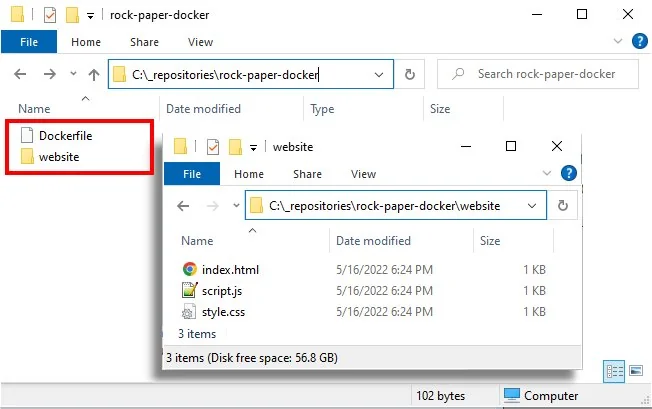
A bind mount lets the Apache httpd container serve files directly from the host filesystem.
Local changes appear immediately
Once the container is running, edit website/index.html on your computer and refresh the browser.
Apache reads the same files through the bind mount, so you do not need to rebuild the image or restart the container for normal static-file changes.
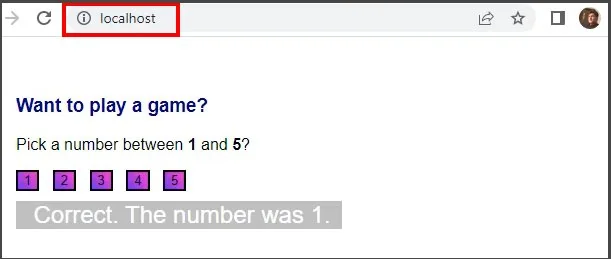
The mapped website is available through the host port published by the Docker container.
Stop the Apache container
Stop the container with:
docker stop my-apache-appBecause the example uses --rm, Docker removes the stopped container automatically. The website files remain on your host machine.
Bind mount for development, custom image for production
A bind mount is ideal for local development because it keeps the container synchronized with the files you are editing.
For production deployment, a custom immutable image is usually preferable because the exact website files are packaged into the image.
FROM httpd:2.4

COPY ./website/ /usr/local/apache2/htdocs/
Build the image:
docker build -t my-apache-site .Then run it:
docker run -d \
  --name my-apache-site \
  -p 8080:80 \
  my-apache-site
This gives production a reproducible application artifact rather than depending on whichever files happen to exist on a particular host.
Use a versioned Apache image
For repeatable deployments, prefer a versioned Apache tag such as:
httpd:2.4rather than relying on the moving latest tag.
If exact reproducibility is critical, a production deployment can go further and pin the image by digest.
Docker Apache bind mount cheat sheet
| Goal | Value or command |
|---|---|
| Apache document root | /usr/local/apache2/htdocs/ |
| Recommended bind mount syntax | --mount type=bind,src=...,dst=... |
| Short bind mount syntax | -v host-path:container-path:ro |
| Publish Apache locally | -p 8080:80 |
| Read-only bind mount | readonly or :ro |
| Stop the container | docker stop my-apache-app |
For local static-site development, run the official httpd:2.4 image and bind-mount your website into /usr/local/apache2/htdocs. It is fast, simple and avoids unnecessary image rebuilds while you work.