

Git configuration problems can be surprisingly frustrating. You know you set your email address, credential helper, default branch name or editor correctly, yet Git behaves as though a completely different value is configured.
The reason is simple: Git configuration can come from several scopes, and a setting from a more specific scope can override one defined elsewhere.
Fortunately, modern Git provides several commands that make these problems easy to diagnose. The most useful are git config list, git config get, --show-origin and --show-scope.
Show a Git config value
If you know the name of the setting you want to inspect, the simplest modern command is:
git config get user.emailFor example:
$ git config get user.email
local@example.com
The older syntax is still widely used and remains useful:
git config --get user.emailBoth forms retrieve the configured value. The newer action-oriented git config get syntax makes the intent especially clear.
List all Git config settings
To inspect the configuration Git can see, use:
git config listThe traditional equivalent is:
git config --listA repository might produce output similar to this:
user.name=Cameron McKenzie
user.email=cameron@example.com
init.defaultbranch=main
core.editor=notepad++.exe
remote.origin.url=https://github.com/example/project.git
remote.origin.fetch=+refs/heads/*:refs/remotes/origin/*
branch.main.remote=origin
branch.main.merge=refs/heads/main
This is useful for a quick overview, but by itself it does not tell you where each setting came from. That matters when the same key has been configured more than once.
Git configuration scopes
Git configuration is layered. The scopes developers most commonly encounter are:
- system for settings that apply across the machine;
- global for settings associated with the current user;
- local for settings stored with a specific Git repository;
- worktree for settings associated with an individual worktree when worktree-specific configuration is enabled; and
- command for configuration supplied to an individual Git invocation.
There can also be configuration loaded through included files and conditional includes, so simply opening ~/.gitconfig is not always enough to determine the effective configuration.
In general, more specific configuration takes precedence over less specific configuration. That is why a local repository setting can appear to ignore the value you configured globally.
Show global Git config settings
To inspect only your global Git configuration, use:
git config list --globalYou can similarly inspect other scopes:
git config list --system
git config list --global
git config list --local
git config list --worktree
The traditional option-first form also works:
git config --global --list
git config --local --list
For a single global value, specify both the scope and the key:
git config get --global user.emailFind where a Git setting came from
When troubleshooting Git configuration, --show-origin is one of the most useful options available.
git config list --show-originIt displays both the configuration value and the file or source that defined it:
file:C:/Users/Cameron/.gitconfig    user.name=Cameron McKenzie
file:C:/Users/Cameron/.gitconfig    user.email=global@example.com
file:.git/config                    user.email=local@example.com
file:.git/config                    remote.origin.url=https://github.com/example/project.git
Now the source of an override becomes obvious. The global configuration contains one email address, but the repository’s local .git/config file defines another.
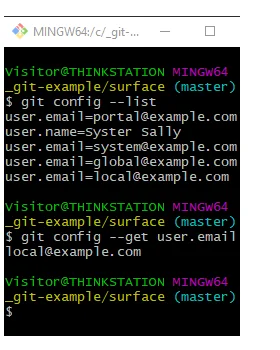
Git config commands can display both configuration values and the files that define them.
Show the scope of every Git setting
You can make the output even more useful with --show-scope:
git config list --show-origin --show-scopeThe output now identifies the scope as well as the source:
global  file:C:/Users/Cameron/.gitconfig  user.email=global@example.com
local   file:.git/config                  user.email=local@example.com
This is one of the best Git configuration troubleshooting commands because it answers three questions at once: what is configured, where was it configured, and at what scope?
Show all values assigned to one Git property
Some Git configuration keys can have multiple values. If you specifically want every value associated with a key, use --get-all:
git config --get-all user.emailFor configuration entries that legitimately contain multiple values, such as certain URL rewrites or fetch specifications, this is particularly useful.
If your goal is to diagnose precedence across configuration files, combine the listing commands with --show-origin and --show-scope instead of relying on a plain --get-all.
Find the effective Git configuration
Suppose the global email is configured like this:
git config set --global user.email global@example.comThen a particular repository overrides it:
git config set --local user.email local@example.comInside that repository, ask Git for the effective value:
$ git config get user.email
local@example.com
Then find out why:
$ git config list --show-origin --show-scope

global  file:C:/Users/Cameron/.gitconfig  user.email=global@example.com
local   file:.git/config                  user.email=local@example.com
The local value wins for that repository.
Where Git config files are stored
The exact locations vary by operating system and installation, but these are the files developers commonly encounter:
~/.gitconfigfor traditional per-user global configuration;~/.config/git/configas another supported per-user configuration location;.git/configfor repository-local configuration; and- a system-level Git configuration file whose location depends on the Git installation.
On Windows, paths can vary depending on whether Git for Windows, another Git distribution or a portable installation is being used. Rather than memorizing every possible location, let Git tell you where a value came from:
git config list --show-originEdit Git config safely
You can edit a configuration file directly, but it is usually safer to let Git make the change.
For example:
git config set --global user.name "Cameron McKenzie"
git config set --global user.email "cameron@example.com"
git config set --global init.defaultBranch main
To remove a value, use unset:
git config unset --local user.emailThe familiar legacy forms remain common as well:
git config --global user.email "cameron@example.com"
git config --unset user.email
Open a Git config file in your editor
Git can also open a configuration file in your configured editor:
git config edit --globalFor repository-specific settings:
git config edit --localThis is preferable to guessing where the relevant configuration file is stored.
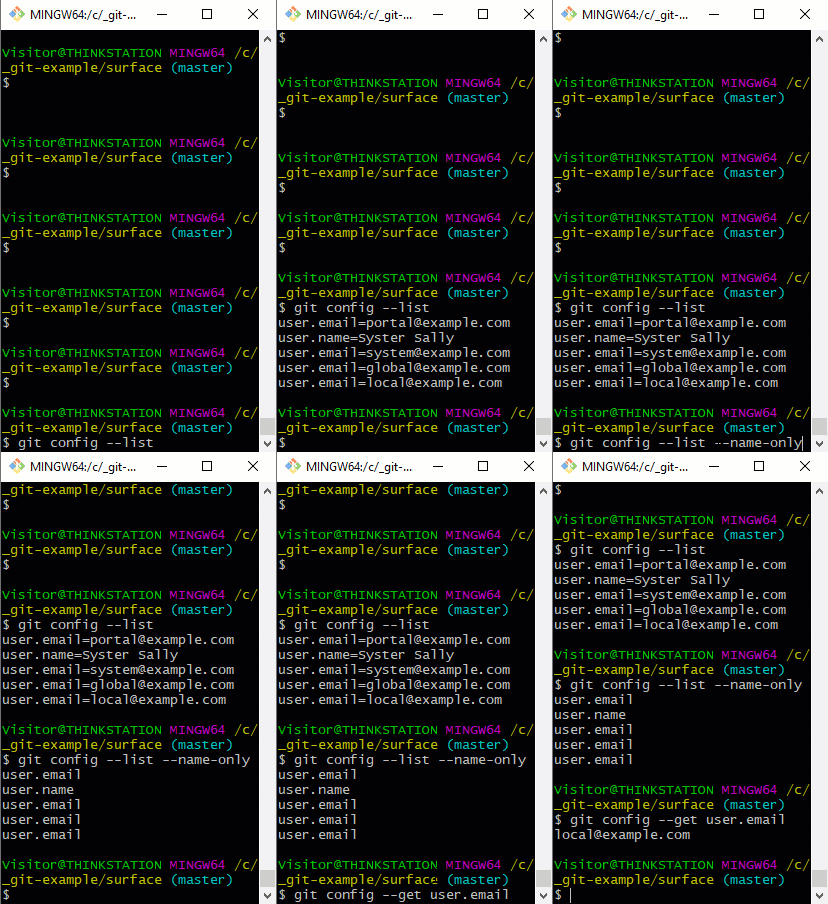
Use Git’s configuration commands to inspect values before manually editing configuration files.
Best Git config troubleshooting commands
If you only remember a handful of commands, make them these:
# Show the effective value of one setting
git config get user.email

# List visible configuration
git config list

# Show where each setting came from
git config list --show-origin

# Show both source and scope
git config list --show-origin --show-scope

# Inspect only global configuration
git config list --global

# Inspect only repository-local configuration
git config list --local

# Edit the global configuration
git config edit --global
The key troubleshooting lesson is to avoid guessing. When Git appears to ignore a configuration value, ask Git for the effective value, its scope and its origin. In most cases, the unexpected behavior turns out to be a perfectly valid setting defined at a more specific scope.

Cameron McKenzie is an AWS Certified AI Practitioner, Machine Learning Engineer, Solutions Architect and author of many popular books in the software development and Cloud Computing space. His growing YouTube channel training devs in Java, Spring, AI and ML has well over 30,000 subscribers.