

Did you make changes on the wrong Git branch? Maybe you started editing files on main or master and only later realized the work belonged on a separate feature branch.
You do not need to throw away the changes, commit them to the wrong branch or start over. In most cases, the fix is one command:
git switch -c new-git-branchGit creates the new branch and switches to it while preserving your current working-tree changes. You can then stage and commit the work on the correct branch.
Create a Git branch with current changes
Suppose you are working on master and git status shows several modified or newly created files:
git statusInstead of committing those changes to master, create and switch to a new branch:
git switch -c new-git-branchNow check the status again:
git statusYour modified, staged and untracked files are still present. The important concept is that uncommitted changes are part of your working tree. They do not become part of a branch's commit history until you actually commit them.
Save current changes on the new branch
Once you are on the new branch, stage and commit the work normally:
git add .
git commit -m "Save local changes"
The complete workflow is therefore very short:
git switch -c new-git-branch
git add .
git commit -m "Save local changes"
At this point, the changes are safely stored in the commit history of new-git-branch.
Return to the original Git branch
After the changes are committed on the new branch, switch back to the original branch:
git switch masterThe committed changes from new-git-branch will no longer appear in the working tree because master still points to its original commit.
Confirm the state of the repository with:
git statusFor tracked files, this is normally all you need. You do not need to reset the original branch because you never committed the accidental changes to it.
Use git clean for leftover untracked files
There is one situation where additional cleanup may be useful. Untracked files are not part of a commit, and depending on what you committed and what remains in the working directory, you may still have unwanted untracked files after returning to the original branch.
The original workflow used git clean -f for this purpose:
git clean -fThis command is intentionally destructive: it permanently removes untracked files from the working tree. Git cannot restore an untracked file that was never committed.
For that reason, preview the cleanup first:
git clean -nThe -n option performs a dry run and lists the files Git would delete without actually removing them. If the list contains only files you genuinely want removed, run:
git clean -fIf untracked directories also need to be removed, preview them with:
git clean -ndThen, if the preview is correct:
git clean -fdDo not use git clean -f merely because you switched branches. Use it only when you intentionally want to delete remaining untracked files.
Complete Git branch and cleanup example
If you intentionally want the original branch cleaned of leftover untracked files, the full sequence looks like this:
git status
git switch -c new-git-branch
git add .
git commit -m "Save local changes"

git switch master
git status

git clean -n
git clean -f
The critical step is the git clean -n preview. Never assume that every untracked file is disposable.
Git switch vs. checkout
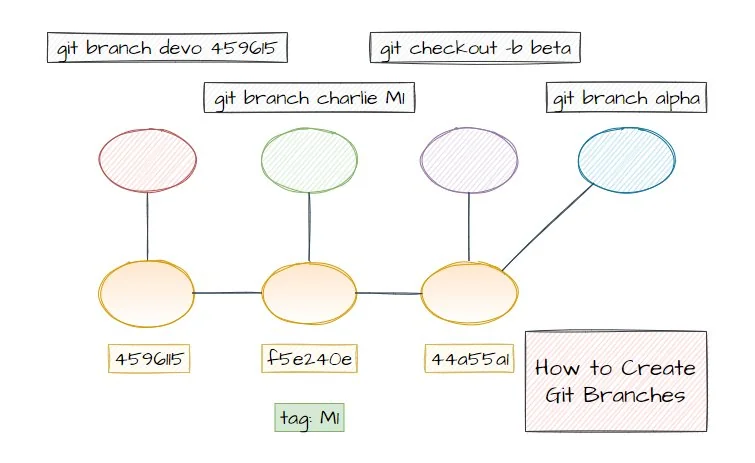
Modern Git provides the switch command specifically for branch operations. The recommended syntax to create and switch to a branch is:
git switch -c new-git-branchOlder Git tutorials commonly use:
git checkout -b new-git-branchBoth commands accomplish the same task in this example. git switch is clearer because its purpose is explicitly branch switching, while git checkout historically performs several different Git operations.
What happens to staged changes?
The same basic rule applies if you already ran git add. Staged changes normally remain staged when you create the new branch:
git add .
git switch -c new-git-branch
git status
You can then commit them on the new branch:
git commit -m "Commit changes on correct branch"You do not have to unstage everything before creating the branch.
What happens to untracked files?
Untracked files also normally remain in the working tree when you create or switch branches. Git does not automatically assign an untracked file to the branch on which it was created.
To make those files part of the new branch's history, add and commit them:
git add .
git commit -m "Add new files"
Once committed, those files belong to that branch's history. When you switch back to a branch whose history does not contain them, Git removes the tracked versions from the working tree as part of the branch switch.
What if Git refuses to switch branches?
Git tries to protect local work. If switching branches would overwrite changes in your working tree, Git can refuse the operation and display an error.
If that happens, one option is to temporarily stash the changes:
git stash push -u -m "Move work to new branch"
git switch -c new-git-branch
git stash pop
The -u option includes untracked files in the stash. After git stash pop, the changes are restored on the newly created branch.
You can then stage and commit them:
git add .
git commit -m "Save local changes"
Push the new branch to GitHub
If the new branch should also exist on the remote repository, push it and configure its upstream tracking branch:
git push -u origin new-git-branchAfter the upstream is configured, future pushes from that branch can normally use the shorter command:
git pushGit local changes cheat sheet
| Goal | Command |
|---|---|
| Create a branch and keep current changes | git switch -c new-branch |
| Older equivalent | git checkout -b new-branch |
| Save changes on the new branch | git add . && git commit |
| Preview removal of untracked files | git clean -n |
| Remove untracked files | git clean -f |
| Temporarily save tracked and untracked changes | git stash push -u |
| Push the new branch and set upstream | git push -u origin new-branch |
The simplest solution when you accidentally develop on the wrong branch is therefore to create the correct branch immediately with git switch -c. Your current work follows you to the new branch, where it can be committed safely. If unwanted untracked files remain after you return to the original branch, preview them with git clean -n before using git clean -f to remove them.