

The git revert command is one of the safest ways to undo a mistake in Git because it does not erase the original commit. Instead, Git creates a new commit whose changes reverse the changes introduced by the commit you target.
That distinction matters. If a commit has already been pushed to a shared branch, rewriting history with git reset can disrupt other developers. A git revert preserves the existing history and records the undo operation as another normal commit.
In this tutorial, we'll walk through a complete git revert example, remove the changes introduced by one earlier commit, verify the result, handle possible conflicts and compare git revert with git reset.
The git revert command
The basic syntax is simple. Find the commit you want to undo and pass its commit ID to git revert:
git revert 4945db2Git applies the inverse of that commit to your current branch and normally opens an editor so you can confirm the new revert commit message. If you are happy with Git's default message, you can skip the editor with --no-edit:
git revert --no-edit 4945db2Before reverting, it is a good idea to make sure your working tree is clean. A quick git status check makes it easier to distinguish your own uncommitted work from changes introduced by the revert.
A complete git revert example
To see exactly what git revert does, start with a clean repository:
git initNext, create five files. Each file is added in a separate commit so we have a simple history to work with:
touch alpha.html
git add alpha.html
git commit -m "1st git commit: 1 file"

touch beta.html
git add beta.html
git commit -m "2nd git commit: 2 files"

touch charlie.html
git add charlie.html
git commit -m "3rd git commit: 3 files"

touch delta.html
git add delta.html
git commit -m "4th git commit: 4 files"

touch edison.html
git add edison.html
git commit -m "5th git commit: 5 files"
A directory listing now shows all five files:
alpha.html
beta.html
charlie.html
delta.html
edison.html
Find the commit to revert
For normal commit history, git log is clearer than git reflog. The reflog tracks local movements of references such as HEAD, which is useful for recovery, but git log is the better tool when the goal is simply to find a commit to revert.
git log --onelineFor this example, assume the history looks like this:
d846aa8 5th git commit: 5 files
0c59891 4th git commit: 4 files
4945db2 3rd git commit: 3 files
defc4eb 2nd git commit: 2 files
2938ee3 1st git commit: 1 file
The third commit, 4945db2, introduced charlie.html. We want to undo that commit without removing the fourth or fifth commits that came after it.
How to revert a specific Git commit
Run git revert and provide the ID of the third commit:
git revert 4945db2Git does not move the branch back to the third commit. It examines what commit 4945db2 changed and applies the opposite changes to the current branch.
In this example, commit 4945db2 added only charlie.html. Therefore, the revert removes only charlie.html. The later additions of delta.html and edison.html remain untouched.
A directory listing after the revert contains four files:
alpha.html
beta.html
delta.html
edison.html
The original commit has not been deleted. It remains part of the repository's history, and Git adds a new commit that reverses its changes. A subsequent log might look like this:
a71c920 Revert "3rd git commit: 3 files"
d846aa8 5th git commit: 5 files
0c59891 4th git commit: 4 files
4945db2 3rd git commit: 3 files
defc4eb 2nd git commit: 2 files
2938ee3 1st git commit: 1 file
This is why git revert is well suited to shared branches: the original history remains intact and the undo operation is visible as a new commit.
What if git revert causes a conflict?
A revert can conflict with later changes. For example, if a later commit modified the same lines that the targeted commit originally introduced, Git may not be able to construct the inverse patch automatically.
When that happens, check the conflicted files with git status, resolve the conflicts, stage the corrected files and continue the revert:
git status

# Resolve the conflicted files, then stage them.
git add path/to/resolved-file

git revert --continue
If you decide not to complete the operation, return the repository to the state it was in before the revert began:
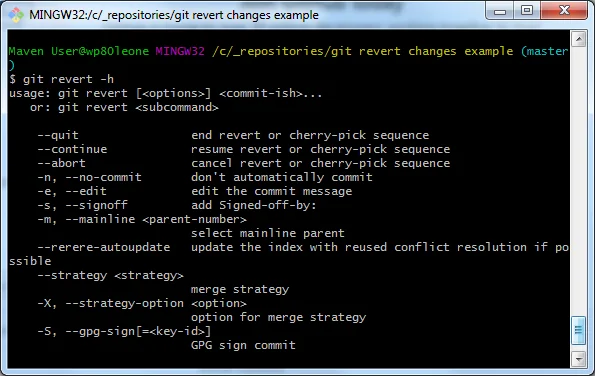
git revert --abortReverting a merge commit requires one additional decision because Git must know which parent should be treated as the mainline. The command takes the form git revert -m <parent-number> <merge-commit>. Use that option only when you understand which merge parent should be preserved.
Git revert vs. git reset
git revert and git reset both undo work, but they do it in fundamentally different ways.
| Behavior | git revert | git reset |
|---|---|---|
| How it undoes work | Creates a new commit that reverses an earlier commit. | Moves the current branch reference to another commit. |
| Preserves existing history | Yes. | Not necessarily. Commits can disappear from the visible branch history. |
| Good choice for pushed or shared branches | Yes. | Usually no. |
| Good choice for unpublished local mistakes | Yes, but it adds another commit. | Often, especially when intentionally rewriting local history. |
If a bad commit has already been shared with other developers, git revert is usually the safer choice. If the commits exist only on your local branch and you intentionally want to rewrite that unpublished history, git reset may be appropriate.
A command such as git reset --hard HEAD~1 is destructive because it moves the branch and resets both the index and working tree. Do not use it casually when you have uncommitted work or when the commit has already been shared.
Steps to revert a Git commit
For most everyday cases, reverting a commit comes down to five steps:
- Run
git statusand make sure you understand any uncommitted work in the working tree. - Use
git log --onelineto locate the commit ID you want to undo. - Run
git revert <commit-id>. - If Git reports conflicts, resolve them and run
git revert --continue, or cancel withgit revert --abort. - Push the newly created revert commit if the branch is shared with a remote repository.
The most important idea to remember is simple: git revert does not erase an old commit. It records a new commit that reverses the selected commit's changes. That makes it one of the safest Git commands for undoing mistakes on branches whose history has already been shared.