

How to install Git on Windows 11
Git is straightforward to install on a modern Windows machine. For most developers, the easiest approach is to download Git for Windows, run the installer and keep the recommended defaults.
This tutorial focuses on Windows 11. The process is very similar on supported Windows 10 systems, but Windows 11 is the better baseline for a new development environment.
Download the current Git for Windows installer from the official Git website and launch the installer.
Recommended Git installation options
The installer exposes a long list of configuration choices. Most of the defaults are sensible, but a few settings deserve attention:
- Use
mainas the initial branch name for newly created repositories. - Choose an editor you are comfortable using for commit and merge messages.
- Allow Git to be used from Git Bash and the Windows command line.
- Use the recommended HTTPS transport and line-ending settings unless your team requires something different.
- Install Git Bash if you want a Unix-like command-line environment on Windows.
Using main as the initial branch name keeps new local repositories consistent with GitHub and many modern development workflows.
| Git, GitHub & GitHub Copilot Certification Made Easy |
|---|
| Want to get certified on the most popular AI, ML & DevOps technologies of the day? These five resources will help you get GitHub certified in a hurry.
Get certified in the latest AI, ML and DevOps technologies. Advance your career today. |
Steps to install Git on Windows
- Download the current Git for Windows installer from the official Git website.
- Run the installer.
- Choose an installation location or accept the default.
- Keep Git Bash and the useful Windows Explorer integrations enabled.
- Select your preferred text editor.
- Configure new repositories to use
mainas the initial branch. - Allow Git to run from Git Bash and the Windows command line.
- Accept the recommended HTTPS, terminal and line-ending settings unless your development team specifies otherwise.
- Finish the installation and open Git Bash.
Verify the Git installation
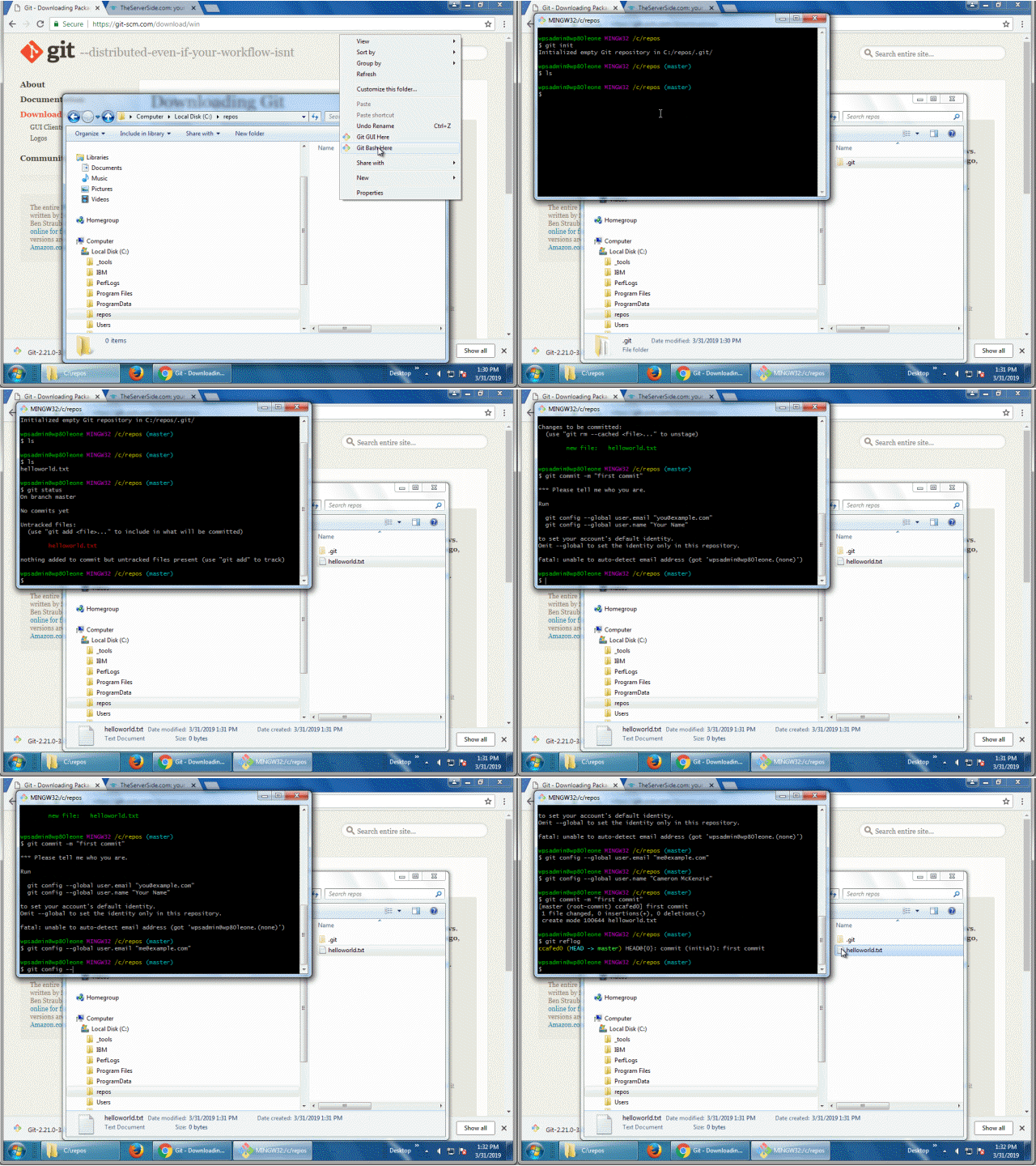
First, make sure Windows can find Git and display the installed version:
git --versionNext, configure the identity Git will record in your commits. Use your own name and email address:
git config --global user.name "Cameron McKenzie"
git config --global user.email "mail@example.com"
git config --global init.defaultBranch main
You can inspect those settings at any time:
git config --global --listCreate a test Git repository
Create a small repository and make a commit. This verifies that Git can initialize a repository, stage a file and write a commit successfully.
mkdir windows-git-test
cd windows-git-test

git init

touch windows-git-install.txt
git add windows-git-install.txt
git commit -m "Verify Windows Git installation"

git status
Because the default branch was configured as main, a new repository should initialize on that branch. After the commit, git status should report a clean working tree.
On branch main
nothing to commit, working tree clean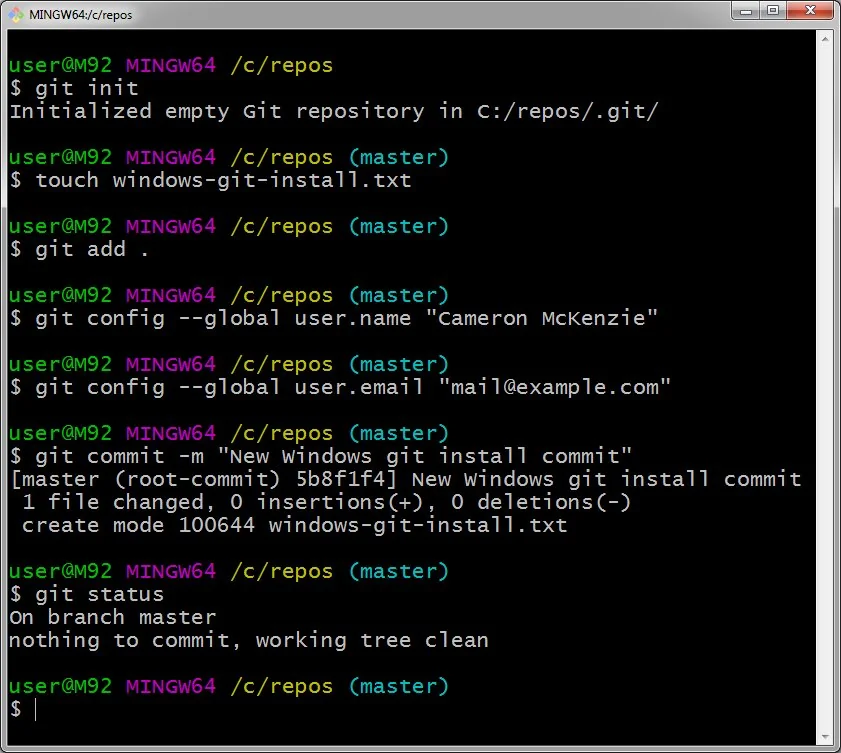
Use a small local repository to verify your Windows Git installation.
At this point Git is installed, your identity is configured and your Windows machine is ready to work with local repositories and remote hosting services such as GitHub, GitLab and Bitbucket.

Cameron McKenzie is an AWS Certified AI Practitioner, Machine Learning Engineer, Solutions Architect and author of many popular books in the software development and Cloud Computing space. His growing YouTube channel training devs in Java, Spring, AI and ML has well over 30,000 subscribers.
Next Steps

The AWS Solutions Architect Book of Exam Questions by Cameron McKenzie
So what’s next? A great way to secure your employment or even open the door to new opportunities is to get certified. If you’re interested in AWS products, here are a few great resources to help you get Cloud Practitioner, Solution Architect, Machine Learning and DevOps certified from AWS:
- AWS Certified Cloud Practitioner Book of Exam Questions
- AWS Certified Developer Associate Book of Exam Questions
- AWS Certified AI Practitioner Book of Exam Questions & Answers
- AWS Certified Machine Learning Associate Book of Exam Questions
- AWS Certified DevOps Professional Book of Exam Questions
- AWS Certified Data Engineer Associate Book of Exam Questions
- AWS Certified Solutions Architect Associate Book of Exam Questions
Put your career on overdrive and get AWS certified today!