

Git fatal: current branch has no upstream branch
You create a new Git branch, make a few commits and then run git push. Instead of uploading your work to GitHub, GitLab or Bitbucket, Git responds with this error:
fatal: The current branch new-branch has no upstream branch.

To push the current branch and set the remote as upstream, use

    git push --set-upstream origin new-branch
The fix is exactly what Git suggests. Push the branch and establish its upstream at the same time:
git push --set-upstream origin new-branchThe shorter and more common version is:
git push -u origin new-branchAfter that first push, the local new-branch tracks origin/new-branch. Future pushes can normally be as simple as:
git pushThe quickest upstream fix with HEAD
If you don't want to type the current branch name, Git can refer to it as HEAD:
git push -u origin HEADThis is especially convenient when branch names are long. Git pushes the currently checked-out branch and configures the corresponding remote branch as its upstream.
Why does Git say there is no upstream branch?
A new local branch does not automatically have to correspond to a branch on a remote server.
Git is distributed. A repository can have several remotes, and a local branch can exist entirely on your machine. Until tracking information exists, Git may not know which remote branch a plain git push should update.
An upstream branch supplies that relationship. For example:
local branch:   new-branch
                    |
                    | tracks
                    v
remote branch:  origin/new-branch
Once that relationship is configured, Git can use it for commands such as git push, git pull and status comparisons between the local and remote branches.
What does origin mean?
origin is simply a remote name. It is commonly created automatically when you clone a repository, but it is not a special GitHub-only keyword.
See the configured remotes with:
git remote -vTypical output looks like this:
origin  git@github.com:example/project.git (fetch)
origin  git@github.com:example/project.git (push)
If your repository uses a different remote name, substitute it for origin:
git push -u company new-branchA complete new-branch push example
A normal branch-based workflow might look like this:
git switch -c new-branch
touch devo.html
git add devo.html
git commit -m "Add developer page"
git push -u origin new-branch
After the first push sets the upstream, continue working normally:
touch echo.html
git add echo.html
git commit -m "Add echo page"
git push
The second push does not need the remote or branch name because the tracking relationship already exists.
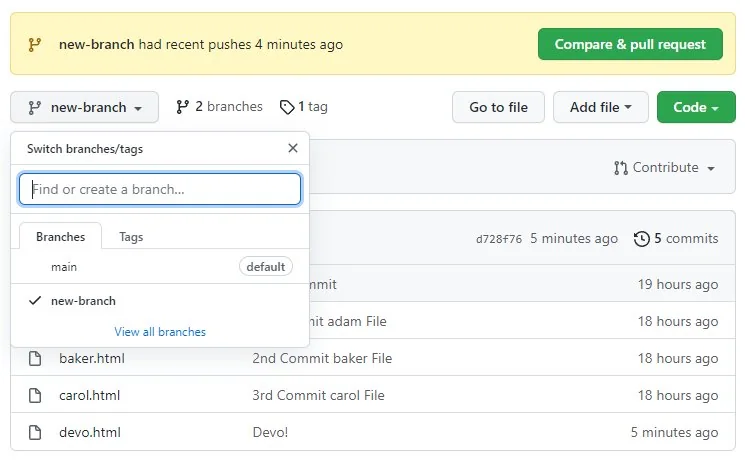
Check a branch's upstream
To see the upstream configured for the current branch, run:
git branch -vvOutput might look like this:
* new-branch 5d82f31 [origin/new-branch] Add developer page
  main       b103fd7 [origin/main] Update README
The value in brackets shows the upstream branch.
You can also ask Git directly for the current branch's upstream:
git rev-parse --abbrev-ref --symbolic-full-name @{upstream}If no upstream exists, Git reports an error instead of a remote-tracking branch name.
Set an upstream without pushing
If the remote branch already exists, you can configure the local branch to track it without performing a push:
git branch --set-upstream-to=origin/new-branchThe short form is:
git branch -u origin/new-branchThis is useful when someone else created the remote branch or when you already fetched it from the server.
Automatically set the upstream on first push
If your workflow is simple and new local branches normally push to a same-named branch on the default remote, modern Git can automatically establish the upstream relationship.
Enable this globally:
git config --global push.autoSetupRemote trueAfter that, for compatible push.default modes, the first plain push of a new branch can automatically behave as though --set-upstream had been supplied.
Your workflow can become:
git switch -c new-branch
git add .
git commit -m "Add new feature"
git push
For teams where branches normally have the same local and remote names and everyone pushes to one central remote, this can eliminate the upstream error entirely.
Should you enable push.autoSetupRemote?
For a straightforward GitHub or GitLab workflow with one central remote, push.autoSetupRemote=true is convenient.
However, not every Git workflow is that simple. Developers can fetch from one repository and push to another, maintain several remotes, or deliberately use different local and remote branch names.
If your workflow depends on that flexibility, explicitly setting the upstream with git push -u may make the relationship clearer.
What does push.default do?
When you run git push without specifying exactly what to push, the push.default setting helps Git decide how to behave.
The default mode is simple. In a common centralized workflow, it pushes the current branch to its configured upstream while also protecting you from accidentally pushing to an upstream branch with a different name.
See your configured value with:
git config --get push.defaultIf nothing is returned, Git uses its built-in default behavior.
Git upstream branch command summary
| Task | Command |
|---|---|
| Push and set upstream | git push -u origin branch-name |
| Push current branch without typing its name | git push -u origin HEAD |
| Set an existing remote branch as upstream | git branch -u origin/branch-name |
| Show branch tracking information | git branch -vv |
| Show configured remotes | git remote -v |
| Automatically set upstream on first push | git config --global push.autoSetupRemote true |
Fix the no upstream branch error
If you just want the immediate fix, run:
git push -u origin HEADThat pushes the current branch and establishes its remote tracking relationship. After that, a normal git push is usually all you need.
If your team follows a simple same-name branch workflow, enabling push.autoSetupRemote can make Git establish that relationship automatically on future first pushes.