
One of the first tasks new Java developers learn is how to read input from a user. Java provides several approaches, and the best choice depends on whether the program runs in a terminal, an IDE, a desktop GUI or a lower-level I/O environment.
Four common Java user-input strategies are:
- Use
System.console()and theConsoleclass. - Create a
ScanneraroundSystem.in. - Display a Swing
JOptionPane. - Wrap
System.inin anInputStreamReaderandBufferedReader.
1. Read user input with Java Console
The Console API is convenient when a Java application is launched from a real command-line terminal.
import java.io.Console;

public class ConsoleInputExample {

    public static void main(String[] args) {
        Console console = System.console();

        if (console == null) {
            System.out.println("No console is available.");
            return;
        }

        String input = console.readLine("Enter some text: ");

        System.out.println("You typed: " + input);
    }
}
The important detail is that System.console() can return null. That commonly happens when a program is launched from an IDE, build tool or environment where the Java process is not attached to an interactive system console.
The Console class is particularly useful for terminal applications that need password input because readPassword() can read characters without echoing them to the screen.
char[] password = console.readPassword("Password: ");2. Read user input with Java Scanner
Scanner is one of the most common choices for beginner programs because it works with System.in and can parse several primitive types.
import java.util.Scanner;

public class ScannerInputExample {

    public static void main(String[] args) {
        Scanner scanner = new Scanner(System.in);

        System.out.print("What is your name? ");
        String name = scanner.nextLine();

        System.out.println(name + " is a nice name!");
    }
}
The Scanner class also includes methods such as nextInt(), nextDouble() and nextBoolean().
System.out.print("How old are you? ");
int age = scanner.nextInt();

System.out.println("You are " + age + " years old.");
One common Scanner pitfall occurs when mixing token-oriented methods such as nextInt() with nextLine(). The numeric method leaves the line-ending character in the input stream, so an additional nextLine() may be needed before reading the next complete line.
Also be careful about closing a Scanner that wraps System.in. Closing the scanner closes the underlying standard-input stream too, which may be undesirable if other parts of the application still need to read from it.
3. Read input with JOptionPane
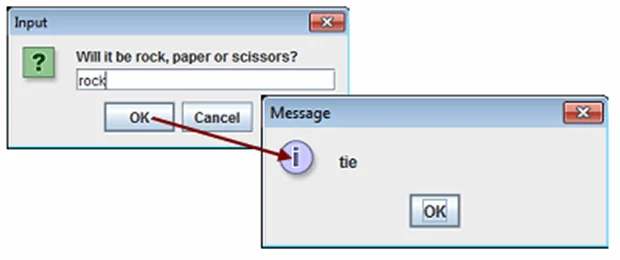
For a small desktop application, Swing's JOptionPane can display a graphical input dialog with very little code.
import javax.swing.JOptionPane;

public class DialogInputExample {

    public static void main(String[] args) {
        String prompt = "Will it be rock, paper or scissors?";

        String input = JOptionPane.showInputDialog(
            null,
            prompt
        );

        if (input == null) {
            System.out.println("The user canceled the dialog.");
        } else {
            System.out.println("This time you said " + input);
        }
    }
}
showInputDialog() returns a String, or null if the user cancels the dialog. If the program needs a number, convert and validate the returned text explicitly.
JOptionPane is a good fit for simple Swing demonstrations, but it is not suitable for headless servers or environments without a graphical desktop.
4. Read System.in with BufferedReader
A lower-level approach is to wrap System.in in an InputStreamReader and then a BufferedReader.
import java.io.BufferedReader;
import java.io.IOException;
import java.io.InputStreamReader;

public class BufferedReaderInputExample {

    public static void main(String[] args) throws IOException {
        BufferedReader reader = new BufferedReader(
            new InputStreamReader(System.in)
        );

        System.out.print("What is your name? ");
        String input = reader.readLine();

        System.out.println("Your input was: " + input);
    }
}
BufferedReader is more verbose than Scanner, but it gives developers direct line-oriented access to character input and can be a good choice when parsing will be handled separately.
Unlike Scanner, BufferedReader does not provide methods such as nextInt(). Numeric input must be converted explicitly:
String text = reader.readLine();
int number = Integer.parseInt(text);
Which Java input strategy should you use?
| Approach | Best fit | Main limitation |
|---|---|---|
Console |
Interactive terminal programs and password input | System.console() may return null |
Scanner |
Beginner programs and parsed console input | Mixing token methods and nextLine() requires care |
JOptionPane |
Small Swing desktop applications | Requires a graphical environment |
BufferedReader |
Direct line-based character input | Requires manual parsing for numbers and other types |
For a beginner console application, Scanner is usually the easiest general-purpose choice. For a real terminal application, especially one that reads passwords, Console is attractive. For a small desktop demonstration, use JOptionPane. Use BufferedReader when you want simple line-oriented input and prefer to handle parsing yourself.
All four approaches ultimately solve the same problem: obtaining data from a user. Choosing the API that best matches the execution environment makes the code easier to understand and avoids unnecessary complexity.